Goal: Give your app a real web address — yourbrand.com instead of a Vercel URL.
What we're doing
Right now your app lives at something like some-random-name.vercel.app. That works, but it doesn't look like a real product.
In this module, you buy a domain name (like yourbrand.com) and connect it to your app. Your customers' pages will be at yourbrand.com/page/their-username.
What is a domain?
A domain is your address on the internet.
Right now, people have to type some-random-name.vercel.app to find your app. With a domain, they type yourbrand.com. It's professional, it's memorable, and you own it.
Step 1: Buy a domain on Namecheap
Verification
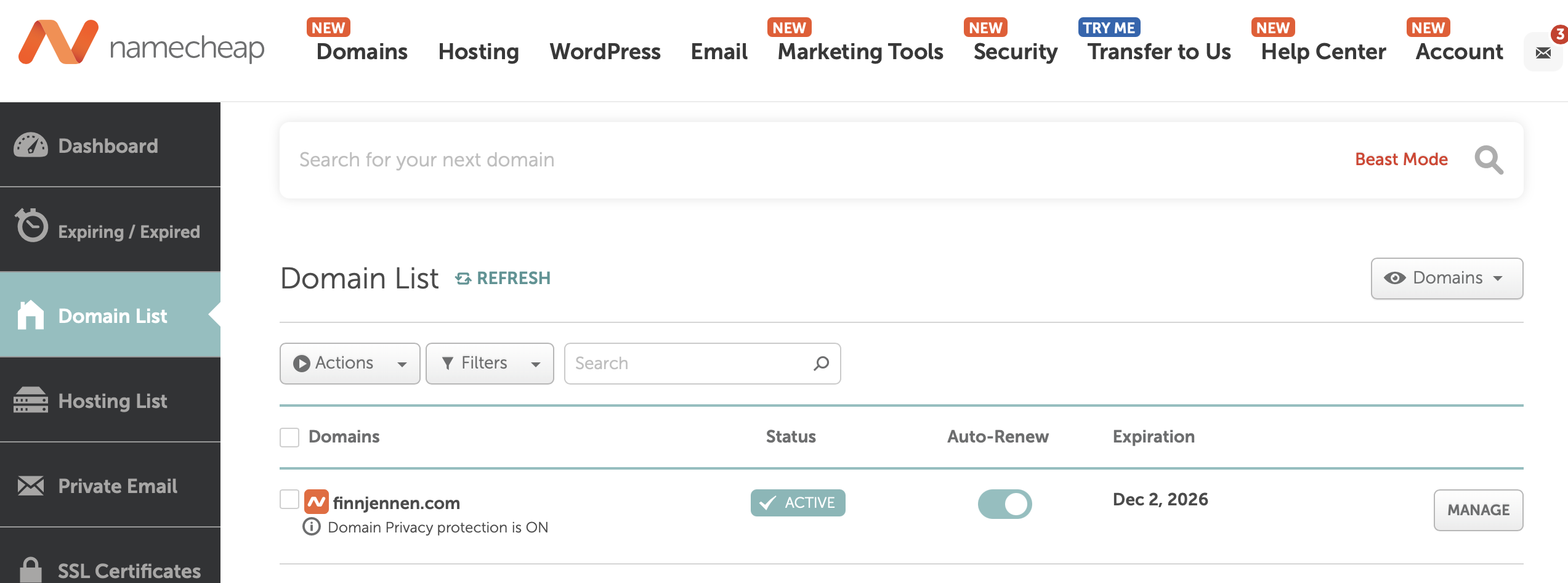
You own a domain. You can see it in your Namecheap dashboard under Domain List.
Step 2: Add your domain to Vercel
Before we touch Namecheap's settings, we need to tell Vercel about your new domain.
Step 3: Point your domain to Vercel
Now go back to Namecheap and do the following:
Now wait. It takes anywhere from a few minutes to 30 minutes for the change to take effect (in rare cases, up to 48 hours).
Verification
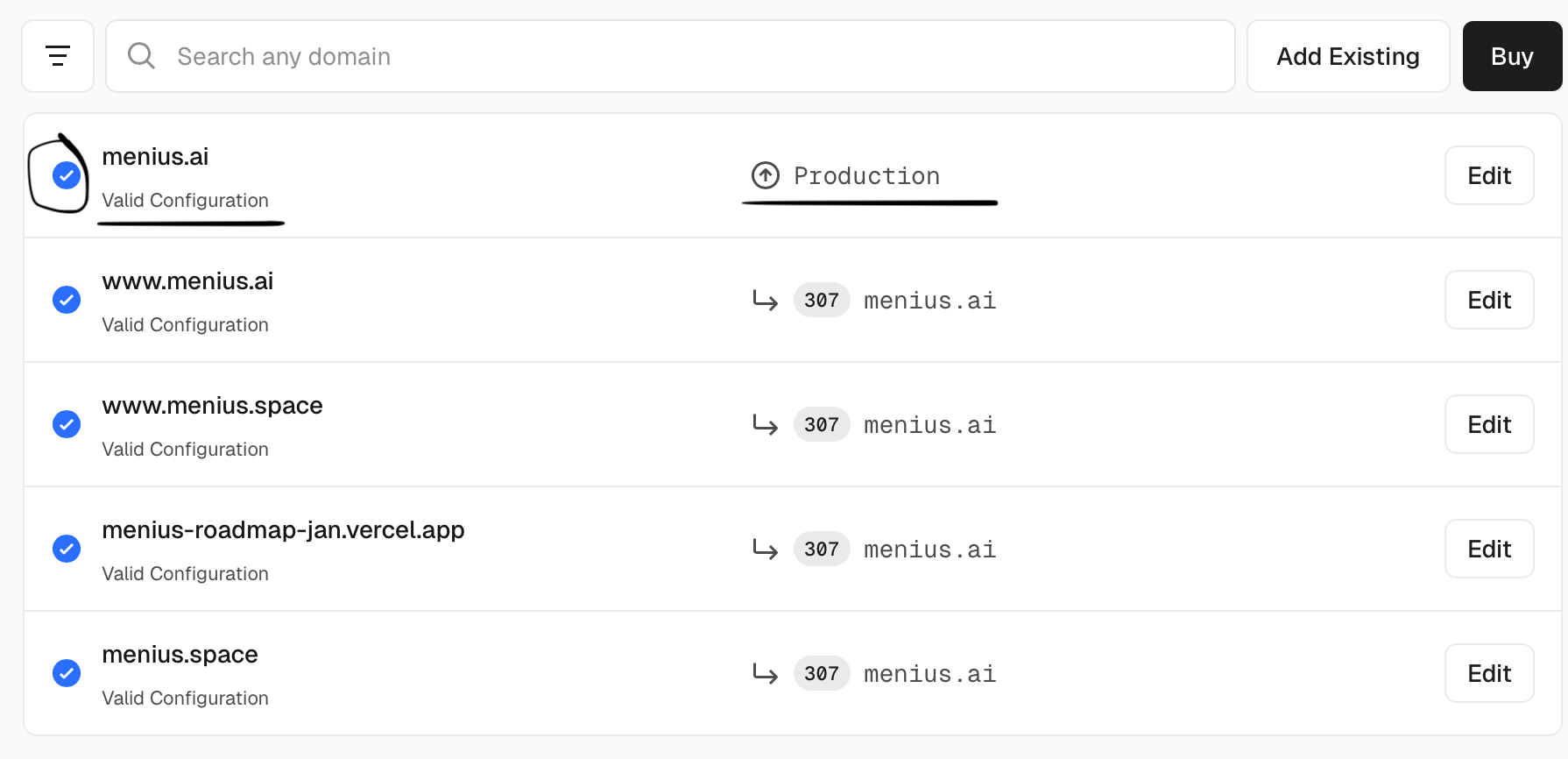
Go back to the Vercel page where you added your domain — you should now see blue checkmarks confirming your domain is configured.
Now open yourbrand.com in your browser — your app should load.
Step 4: Update Supabase and Stripe
Your app has a new address now, so Supabase and Stripe need to know about it — otherwise login and payments will break on the custom domain.
Update Stripe redirect URL
Same as above, but for Stripe. The Agent handles the Stripe side via MCP — then it will give you one key to paste into Vercel.
Replace yourdomain.com in the prompt below with the actual domain you bought before sending it.
I now have a real domain at yourdomain.com. Using the Stripe MCP, register a production webhook endpoint pointing at https://yourdomain.com/api/webhook. Look at my /api/webhook handler code to find every Stripe event it listens for, and register the endpoint for exactly those events. Get the signing secret for the new endpoint and tell me the exact value to add to my Vercel environment variables as STRIPE_WEBHOOK_SECRET. Keep all explanations in plain English.
AI PromptUpdate Stripe webhook — Put this in your IDE
I now have a real domain at yourdomain.com . Using the Stripe MCP, register a production webhook en...
Click to expand
Step 5: Test everything on your domain
Verification
Your app is live on a real domain. The URL works. Login works. Payments work. Public pages load at yourbrand.com/page/username.
This is a real app on the internet.
What about the old Vercel URL?
Your app still works at some-random-name.vercel.app — Vercel doesn't turn it off. Both URLs work.